




Mouse macros are pre-recorded sequences of mouse actions that let you trigger multiple clicks, movements, or commands with a single button press. Instead of repeating the same actions over and over, a macro bundles them into one simple input—saving time and improving consistency.
Used correctly, mouse macros can make gameplay more reliable and everyday work far more efficient, especially for repetitive tasks. That said, not all games allow macros, and how you use them matters just as much as whether you use them at all.
In this guide, you’ll learn what mouse macros are, how to set them up step by step, real gaming and productivity use cases, and when macros are allowed—or not—so you can use them safely and effectively.
What Are Mouse Macros?
Mouse macros are customized commands that allow a mouse button to perform multiple actions automatically. Instead of manually repeating the same clicks or movements, a macro executes a predefined sequence for you with a single input.

At a basic level, a mouse macro works like this: you record or define a set of actions—such as clicks, delays, or movements—and assign them to one button. When that button is pressed, the mouse repeats those actions exactly as programmed.
It’s important to note that mouse macros don’t create new actions. They simply automate inputs you could already perform manually, but with greater speed and consistency. This is why macros are commonly used for repetitive tasks, precision timing, or workflow optimization.
Mouse macros are input shortcuts that let a single mouse button trigger predefined actions, helping reduce repetition without changing how a game or application works.
Mouse Macros vs Regular Mouse Functions
A standard mouse button performs one action per click. A macro-enabled button can perform many actions in sequence, such as:
- Multiple clicks with precise timing
- Click-and-hold actions
- Repeated movements or inputs
- Context-specific commands tied to a profile
This distinction is what makes macros useful—but also why their use may be restricted in certain environments, such as competitive online games.
To avoid confusion, mouse macros are not hacks, exploits, or game-modifying scripts, nor are they automated bots that operate without player input. A mouse macro only runs when you actively press a button, and it simply repeats actions you have explicitly defined—it does not make decisions, alter game code, or perform actions on its own.
How Do Mouse Macros Work?
Mouse macros work by recording or defining a sequence of mouse inputs and replaying them when a specific button is pressed. These inputs can include clicks, button holds, cursor movements, and precise delays between actions.
At a high level, every mouse macro follows the same basic flow:
Trigger → Action Sequence → Output
- Trigger: You press a designated mouse button
- Action sequence: The macro executes a predefined list of actions
- Output: The system receives those inputs exactly as if you performed them manually
This is why macros feel instant and consistent—they remove human timing variation while still requiring user input.
Recording vs Manually Creating a Macro
Most mouse software supports two ways to create macros:
- Recorded macros: You perform actions in real time, and the software captures clicks and timing automatically.
- Manually configured macros: You define each action and delay yourself, giving you more control and precision.
Both methods achieve the same result, but manual configuration is often preferred when timing accuracy matters, such as in gaming or complex workflows.
Why Timing and Delays Matter
A macro is not just a list of actions—it’s a timed sequence.
Delays between actions determine:
- How fast clicks are executed
- Whether inputs register correctly
- How natural the macro feels compared to human input
Poorly timed macros can fail, feel inconsistent, or even be flagged in restricted environments. Well-tuned macros, on the other hand, behave predictably and reliably.
On-Device vs Software-Based Macros
Macros can be handled in two different ways:
- On-device macros: Stored directly in the mouse’s memory and executed by the hardware.
- Software-based macros: Run through mouse driver software while your system is active.
Both approaches work, but on-device macros are often more consistent across systems, while software-based macros allow deeper customization.
How to Set Up Mouse Macros (Step-by-Step)
Setting up mouse macros is usually straightforward, as long as your mouse supports programmable buttons. While the interface may vary slightly depending on the software, the overall process follows the same core steps.
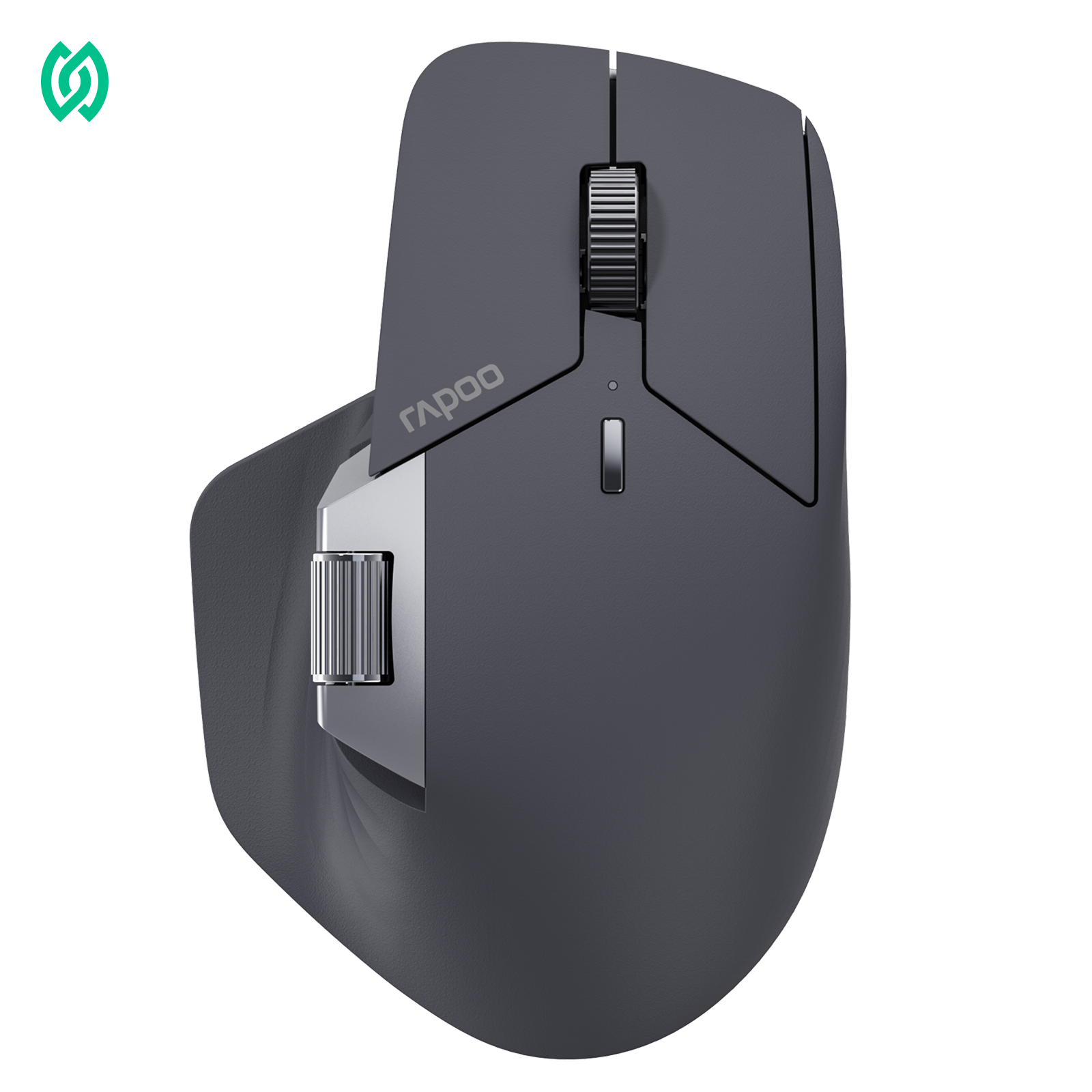
RAPOO Gaming Mouse Macros
Step 1: Open Your Mouse Software
Start by opening the mouse driver or configuration software installed on your computer. This is where you’ll find options for button mapping, profiles, and macro creation.
If your mouse does not support software customization, macro setup may not be available.
Quick Access: RAPOO Software Download
Step 2: Create a New Macro
Look for a section labeled Macros, Macro Manager, or Button Assignment. Create a new macro and give it a clear name based on its function, such as “Rapid Click” or “Combo Action.”
Clear naming makes it easier to manage multiple macros later.
Step 3: Record or Define the Actions
Most software offers two ways to build a macro:
- Record mode: Perform the actions in real time while the software records clicks and timing automatically.
- Manual mode: Add clicks, button holds, and delays manually for more precise control.
For beginners, recording is faster. For advanced users or gaming macros, manual setup usually provides better accuracy.
Step 4: Adjust Timing and Delays
Timing is one of the most important parts of a macro.
Review the recorded actions and adjust delays between inputs if needed. Shorter delays make macros faster, while longer delays can improve reliability and make the macro feel more natural.
Avoid setting delays unrealistically low, as this can cause missed inputs or unwanted behavior.
Step 5: Assign the Macro to a Mouse Button
Once the macro is ready, assign it to a programmable mouse button. Side buttons are commonly used, but any remappable button will work.
Make sure the macro is linked to the correct profile if your mouse supports multiple profiles.
Step 6: Save and Test the Macro
Save your settings and test the macro in a safe environment, such as a desktop application or practice mode.
Check that:
- All actions trigger correctly
- Timing feels consistent
- The macro behaves as expected under repeated use
If something feels off, return to the macro editor and fine-tune delays or actions.
How to Record and Edit a Mouse Macro
Recording and editing mouse macros gives you precise control over how your inputs behave. While recording is the fastest way to get started, fine-tuning a macro is what makes it reliable and practical in real-world use—especially when timing and consistency matter.
Recording a Mouse Macro
Most mouse software includes a record mode that captures your actions in real time. This method mirrors how you naturally use your mouse, making it ideal for quick setup and experimentation.
When recording a macro, the software typically captures:
- Clicks and button holds
- Cursor movements
- Timing between each action
Recording works best as a starting point, but recorded macros often benefit from later refinement.
Recorded Macros vs Manual Input Macros
| Aspect | Recorded Macros | Manual Input Macros |
|---|---|---|
| Setup speed | Very fast | Slower, more deliberate |
| Timing accuracy | Depends on user input | Fully controlled |
| Consistency | Can vary between recordings | Highly consistent |
| Best for | Simple tasks, quick tests | Gaming, professional workflows |
| Editing required | Often | Sometimes |
For beginners, recording a macro is usually sufficient. For advanced use cases—especially gaming or precision workflows—manual input provides better long-term reliability.
Editing Delays and Timing
Delays control how long a macro waits between actions and are one of the most important macro settings.
| Delay Type | Effect | Best Use Case |
|---|---|---|
| Very short delays | Faster execution | Simple, low-risk actions |
| Longer delays | Higher reliability | Software-heavy or latency-sensitive tasks |
| Balanced delays | Natural, human-like input | Most general-purpose macros |
Setting delays too low can cause missed inputs or unpredictable behavior, particularly in games or complex applications.
Single Execution vs Looping Macros
Macros typically run in one of two execution modes:
| Execution Mode | How It Works | Risk Level | Typical Use |
|---|---|---|---|
| Single execution | Runs once per button press | Low | Most tasks and games |
| Looping execution | Repeats while held or toggled | Higher | Repetitive tasks where allowed |
Single execution macros are safer and more widely accepted. Looping macros should only be used in environments where automation is clearly permitted.
Common Mouse Macro Examples
Mouse macros are most useful when they solve specific, repeatable problems. Instead of thinking about macros in abstract categories, it’s easier to understand them through real-world scenarios where they reduce effort or improve consistency.
Below are practical mouse macro examples that reflect how macros are commonly used in everyday gaming and work environments.
Rapid Clicking for Repetitive In-Game or UI Actions
In some situations, you may need to click repeatedly within a short period of time—whether it’s interacting with game interfaces, confirming repeated actions, or performing the same click-driven task over and over.
A rapid-clicking macro helps by maintaining consistent click timing without requiring constant manual input. This not only reduces finger fatigue during longer sessions, but also ensures the action behaves the same way every time. In most cases, this type of macro is configured to run once per button press or while holding a button, keeping the player in full control.
Executing a Simple Ability Combo with Consistent Timing
Certain actions require the same sequence of inputs every time, often with short but precise delays between steps. Manually repeating these sequences can feel inconsistent, especially under pressure.
A combo macro allows you to trigger a fixed input sequence in a controlled order, ensuring that timing stays consistent. Rather than speeding up gameplay, the macro reduces execution errors caused by missed inputs or uneven delays, making the outcome more predictable.
Automating Repeated Menu and Interface Navigation
Not all macros are about speed. Many are designed to reduce time spent navigating menus or repeating the same interface interactions across sessions.
For example, if a task involves opening menus, clicking through identical options, or confirming the same prompts repeatedly, a macro can handle these interactions with minimal effort. These macros focus on workflow efficiency, not performance, and are especially useful in software-heavy environments where UI navigation is unavoidable.
Creating One-Button Shortcuts for Daily Workflows
In both work and personal setups, certain routines involve the same sequence of actions every day—switching modes, activating tools, or triggering setup steps before starting a task.
Workflow macros combine these steps into a single, intentional input, allowing you to move from one state to another without unnecessary repetition. These macros are often tied to specific profiles or applications, making them flexible and easy to manage without interfering with other tasks.
Choosing the Right Macro for the Situation
Different macro setups solve different problems. Choose based on whether you prioritize workflow efficiency or gaming performance.

Rapoo MT760 Pro
Productivity-focused macro mouse for multi-device workflows.
$69.99
- Connect up to 7 devices across NearLink, Bluetooth, and wired modes
- 11 programmable buttons with on-board memory
- Perfect for shortcuts, window switching, and repetitive UI tasks
Apply at checkout to save extra.

Rapoo VT2 Max Gen-2
High-performance gaming mouse for precision macro timing.
$69.99
- 10 fully programmable buttons (Mac & Windows supported)
- Dual 8K polling with microsecond-level response
- Designed for single-action, timing-sensitive gaming macros
Use at checkout for extra savings.
Using Mouse Macros for Gaming

Players who spend time in MMO or MOBA games quickly realize how many inputs are required—often in rapid succession and at critical moments. While keyboard keybinds can handle many of these actions, relying on them alone can slow down execution and increase physical strain during long sessions.
This demand for faster, more accessible inputs is one reason gaming mice with multiple programmable buttons became popular in MMO and MOBA genres. Placing extra buttons within thumb reach allows players to trigger abilities, items, or commands more efficiently, reducing unnecessary hand movement. In these scenarios, mouse macros are often used not to automate gameplay, but to improve input consistency and accessibility.
That said, the effectiveness of mouse macros in gaming depends heavily on how they are configured and where they are used.
What Mouse Macros Can Help With in Games
When used responsibly, gaming mouse macros are typically applied to:
- Repeating the same input reliably
- Reducing physical strain during long play sessions
- Executing simple, predefined action sequences with consistent timing
Macros are most effective when they replace repetitive manual inputs, not when they attempt to automate reactions, decision-making, or complex gameplay logic.
In genres like MMOs and MOBAs—where ability rotations, item usage, and frequent commands are common—this kind of consistency can improve comfort and reduce execution errors over time.
Why Timing Matters More in Games
Games are highly sensitive to timing. The order of inputs, the delay between actions, and the speed at which commands are repeated all affect how the game responds.
Poorly configured macros—especially those with overly aggressive or unnatural timing—can feel unresponsive or inconsistent compared to manual input. In contrast, well-tuned macros with realistic delays tend to behave more predictably and feel closer to natural player input.
This is also why extreme or unnatural timing patterns can cause issues, both in gameplay performance and in environments with active anti-cheat enforcement.
Competitive vs Casual Gaming Use
Macro tolerance varies significantly depending on the game and the context in which it’s played.
In casual or single-player modes, limited macro use is often tolerated or even supported for convenience and accessibility. In competitive or ranked environments, rules are usually stricter, and macro usage may be limited to very specific functions—or prohibited entirely.
As a general guideline, macros are safest in competitive play when they:
- Trigger only on direct button press
- Execute a single, repeatable action
- Do not automate gameplay decisions or reactions
Because rules differ between games and modes, always review official policies before enabling macros—especially in multiplayer or ranked settings.
A Note on Mouse Choice and Game Type
While mice with many programmable buttons can be extremely useful in input-heavy genres like MMOs and MOBAs, they are not always ideal for every type of game. Larger designs and additional buttons often come with extra weight, which may feel less suitable for fast-paced FPS titles where precision and rapid movement matter more than button access.
Choosing whether—and how—to use mouse macros should always align with the game genre, the control demands, and the rules of the environment you’re playing in.
Using Mouse Macros for Productivity and Work
Unlike gaming, productivity use cases rarely involve competitive fairness, which is why macro rules are generally more flexible in work environments.

Mouse macros aren’t just for gaming—they’re often even more useful in productivity and everyday work. When tasks involve repeated clicks, predictable steps, or routine workflows, macros help reduce unnecessary repetition, save time, and minimize physical strain over long work sessions.
In work scenarios, macros are mainly used to improve consistency rather than speed. By turning multi-step actions into a single, intentional input, they allow users to focus on the task itself instead of repeatedly performing the same mechanical actions.
Compared to gaming macros, productivity macros are typically slower and more deliberate. Longer delays help ensure reliability, reduce errors caused by software lag, and make macros easier to adjust, which makes them better suited for long-term daily use.
Common Productivity Use Cases
Mouse macros are especially effective when:
- Navigating menus or confirming repeated UI actions
- Switching tools or repeating edits in creative software
- Performing the same interactions across multiple files or applications
- Triggering complex or hard-to-reach keyboard shortcuts with a single button
- Quickly switching between multiple windows or interface layouts
- Tasks are repetitive, predictable, and performed frequently
In these situations, even simple macros can lead to noticeable efficiency gains over time.
Are Mouse Macros Allowed in Games?
Whether mouse macros are allowed in games depends on the game, the game mode, and—most importantly—what the macro actually does. There is no universal rule, but across major online games, the enforcement logic is remarkably consistent.
Most developers and anti-cheat systems do not ban macro mice simply for existing. Instead, they evaluate the level of automation involved and whether the macro exceeds what the game itself allows. Hardware features or mouse software do not override game rules.
In casual or PvE environments, limited input assistance may be tolerated. In competitive or ranked modes, however, the same macro can be restricted or outright prohibited. Even within a single game, what is acceptable in casual play may be disallowed in ranked or professional settings.
Are Mouse Macros Considered Cheating?
Mouse macros are not automatically cheating, but they are widely treated as cheating when they move beyond single-input assistance and begin automating gameplay.
Across games like World of Warcraft, League of Legends, and Valorant, a clear pattern emerges:
Macros are generally acceptable when they:
- Require a manual button press
- Trigger one single in-game action
- Function as a key remap or accessibility aid rather than automation
Macros are commonly considered cheating when they:
- Execute multiple actions or rotations with one click
- Use delays, loops, or timed sequences
- Automate recoil control, ability combos, or repeated inputs
- Remove the need for player timing, reaction, or decision-making
For example:
- World of Warcraft allows in-game macros and single-action bindings, but external macro software that performs sequences or rotations is treated as automation or botting.
- League of Legends prohibits macro usage that automates gameplay, even though simple key remapping is generally acceptable.
- Valorant allows standard button remapping but considers any macro that automates actions—such as recoil control or multi-step inputs—cheating and detectable by Vanguard.
The One-Button Rule If a mouse button triggers one in-game action, it’s usually acceptable. If it triggers a sequence, rotation, or automation, it’s likely against the rules.
When You Should NOT Use Mouse Macros
While mouse macros can be useful, there are situations where using them is not recommended. Even in genres like MMOs—where multi-button mice and macros are commonly used for accessibility and convenience—the context still matters. In competitive or ranked modes, automation is often restricted to protect fairness, and macros that reduce skill requirements or trigger anti-cheat systems can lead to penalties. If a game emphasizes rankings, rewards, or esports-style competition, it’s safest to avoid macros unless they are explicitly allowed.
Macros should also be avoided when game rules are unclear. A lack of clear policy does not imply permission, and assuming leniency can be risky. In these cases, sticking to manual input—or disabling macros entirely—is the safest approach. This is especially true when using complex hardware setups, such as MMO mice with many programmable buttons, where unintended automation can occur more easily.
FAQ: Mouse Macros
What are mouse macros used for?
Mouse macros are used to simplify repetitive inputs by assigning predefined actions to a mouse button. In practice, they are commonly used to reduce physical strain, improve consistency, and streamline workflows—both in productivity tasks and in games that involve frequent, predictable inputs.
Importantly, macros do not create new actions. They only repeat inputs a player or user could already perform manually.
Are mouse macros cheating?
Mouse macros are not automatically cheating, but they are widely considered cheating when they automate gameplay beyond what the game itself allows.
Across major titles like World of Warcraft, League of Legends, and Valorant, the common standard is clear:
- Single-action input assistance may be acceptable
- Multi-action automation or rotations are treated as cheating
If a macro replaces player timing, judgment, or execution skill, it is very likely to violate game rules.
Are mouse macros allowed in online games?
There is no universal rule—macro policies depend on the game. However, major competitive games follow a similar principle:
- World of Warcraft: In-game macros are allowed, but external macro mice or software that create delays, loops, or multi-action sequences are considered automation or botting and can lead to bans.
- League of Legends: Riot’s official stance prohibits macro usage that automates gameplay. Simple key remapping is generally acceptable, but one-click combos or automated actions are considered cheating and are not allowed.
- Valorant: Macros that automate actions such as recoil control, rapid-fire, or ability sequences are bannable. Rebinding mouse buttons to single in-game actions is allowed, but any form of automation is risky and detectable by Vanguard.
General rule: If a mouse button triggers one action, it is usually safe. If it triggers a sequence, it is likely against the rules.
Can mouse macros improve productivity?
Yes. Mouse macros are widely used in productivity and work environments to reduce repetitive actions, simplify complex shortcuts, and speed up routine workflows. They are especially useful for tasks like UI navigation, creative tool switching, and multi-window management.
Unlike gaming macros, productivity macros prioritize reliability and consistency over speed, making them suitable for long-term daily use.
Do mouse macros increase input lag?
Mouse macros do not inherently increase input lag. However, poorly configured delays, excessive automation, or software-based execution can make macros feel slower or inconsistent.
Well-configured macros with realistic timing generally behave similarly to manual input and do not noticeably affect responsiveness.
Are mouse macros safe to use?
Mouse macros are safe when used responsibly and within platform rules. Issues usually arise when macros are used to automate gameplay in competitive games, violate terms of service, or are deployed in environments that restrict automation.
To minimize risk:
- Avoid macros that execute multiple actions
- Follow each game’s official rules
- Disable macros in competitive or unclear environments
When in doubt, assume stricter enforcement applies.
Final Thoughts
Mouse macros are tools—not shortcuts to unfair advantage. When used responsibly and within platform rules, they can improve comfort, consistency, and efficiency. Understanding where the line is matters more than the tool itself.
Reference
Blizzard End User License Agreement - [URL]
Blizzard's In-Game Code of Conduct - [URL]
Are autoclickers allowed in WoW? - [URL]
Asked a riot employee if gaming keyboards and mice macros allowed in League. They said no. Really? - [URL]
What is Valorant Vanguard? - [URL]