



When choosing or using a mouse, you’ve probably seen one specification come up again and again: DPI (Dots Per Inch). Whether you’re playing FPS games, doing design work, or handling everyday office tasks, this single number has a direct impact on how fast and how precisely your cursor moves on screen. Yet many users still aren’t sure what mouse DPI actually means, whether higher DPI is better, or what DPI setting they should be using.
As high-resolution monitors, multi-screen setups, and competitive gaming become more common, understanding DPI is more important than ever. The right DPI setting can improve accuracy, reduce fatigue, and help you get the most out of your mouse hardware. That’s exactly why searches like “what is DPI on a mouse” and “mouse DPI settings” consistently rank among the most popular mouse-related questions.
In this complete guide, we’ll break down everything you need to know about mouse DPI—from the basic definition and how DPI works, to how to check, change, and test your DPI, and how to choose the best setting for gaming, work, or high-resolution displays. Whether you’re a competitive gamer, a designer, or a casual computer user, this guide will help you find the DPI setup that actually works for you.
2. What Is Mouse DPI?
2.1 What Does DPI Mean on a Mouse?
When people talk about “mouse DPI,” they’re referring to Dots Per Inch—a measurement of how sensitive your mouse is. In simple terms, DPI tells you how far the cursor moves on-screen when your mouse moves one inch on your desk. A higher DPI means the cursor travels farther with the same hand movement, making the mouse feel more responsive. A lower DPI gives you slower, more controlled cursor movement.

This is why DPI is one of the most searched topics for users choosing a new mouse or trying to optimize their gaming or work setup.
Key Points You Should Know About DPI
-
DPI = mouse sensitivity measurement
Higher DPI → faster cursor movement
Lower DPI → slower, more precise movement
-
DPI vs CPI (Counts Per Inch)
- Technically, many sensors measure CPI, not DPI
- In consumer products, DPI and CPI are used interchangeably
- They both describe how many “steps” the sensor reports per inch of physical movement
-
Why DPI matters
- Affects gaming accuracy
- Influences editing precision (e.g., Photoshop)
- Impacts how comfortably you navigate high-resolution displays
2.2 DPI Does Not Equal Accuracy — Higher Isn’t Always Better
A common misconception is that a higher DPI automatically means a “better” or “more accurate” mouse. In reality, DPI has almost nothing to do with accuracy. DPI simply changes speed or sensitivity, while accuracy is determined by the quality of the sensor and how well it tracks movement.
Some mice advertise extremely high DPI numbers—like 16,000 or even 30,000 DPI—but that doesn’t mean your cursor becomes more precise. In fact, setting DPI too high can make your cursor jittery, unstable, and harder to control.
What Actually Determines Mouse Accuracy
- Sensor performance (tracking precision):Good sensors track movement cleanly at low and moderate DPI ranges.
- IPS (speed rating): Measures how well a sensor can keep up with rapid movement.
- Polling rate: How often the mouse reports its position to your PC.
- Surface quality & mouse feet:Even the best sensor struggles on a glossy or uneven mousepad.
When High DPI Becomes a Problem
- Cursor becomes overly sensitive
- Harder to aim in FPS games
- Micro-adjustments become difficult
- Visible jitter may appear on cheap sensors
This is why most pro FPS players still choose 400–800 DPI, even though their mice can technically go much higher.
3. How Does Mouse DPI Work?
Mouse DPI determines how your cursor translates real-world movement into on-screen movement, and it’s all driven by the sensor inside your mouse. Every time you move the mouse—even slightly—the sensor captures a series of images of the surface beneath it. These images are analyzed in real time to calculate how far the mouse has moved. DPI controls how much cursor movement each of those sensor “counts” translates into.
In simple terms: Your mouse sensor tracks movement → converts it into digital signals → DPI sets how much cursor distance those signals create. Higher DPI multiplies sensitivity, while lower DPI prioritizes precision and stability.
4. How to Check Your Mouse DPI
Knowing your mouse’s DPI is crucial for optimizing sensitivity—whether you’re gaming, designing, or simply trying to work more comfortably. While some gaming mice clearly display DPI levels, many regular office mice don’t show this information anywhere on the mouse itself. Fortunately, there are several reliable ways to check your mouse DPI, even if your model doesn’t include dedicated software.
Below are the four most accurate methods used by both everyday users and professionals.
4.1 Method 1: Check the Manufacturer’s Specifications (Most Accurate)
The easiest and most reliable way to know your mouse DPI is to look up the official specs from the manufacturer. Brands like Logitech, Razer, Rapoo, Corsair, and SteelSeries list exact DPI ranges on their product pages, packaging, and manuals. If your mouse has preset DPI levels (e.g., 800 / 1200 / 1600), the manufacturer will typically publish these values online.
Why This Method Works Best
- DPI values come directly from the manufacturer
- No guesswork or testing required
- Works even for older or budget mice
Where to find official DPI:
- Manufacturer website product page
- User manual or quick-start guide
- Amazon or retailer product listings
- PDF spec sheets
4.2 Method 2: Use Your Mouse Software (Logitech, Razer, Rapoo, etc.)
If you use a gaming mouse, chances are high that it has a companion software where DPI settings are adjustable and visible. This is the most detailed method because the software often shows exact numbers—sometimes even in increments of 1 DPI.

Software examples:
- Logitech G Hub
- Razer Synapse
- Rapoo Gaming Software
- Corsair iCUE
- SteelSeries GG
- HyperX NGENUITY
What you can usually do in the software:
- View current DPI
- Change DPI levels
- Create multiple DPI profiles
- Assign DPI Shift / Sniper buttons
- Sync DPI settings across devices
If your mouse has a DPI button, the software usually shows which DPI level is active.
4.3 Method 3: Check With Windows Settings (Indirect but Helpful)
Windows doesn’t directly show your mouse’s DPI value, which is why so many people search “how to check mouse DPI on Windows.” However, Windows does allow you to review pointer speed and acceleration settings, which influence how DPI feels.
You can check:
- Pointer speed (Control Panel → Mouse → Pointer Options)
- Whether acceleration (“Enhance Pointer Precision”) is turned on
- Driver information to identify your mouse model
Important:
This method does not display true DPI—it only affects how your DPI translates into cursor movement. To know the actual DPI, you still need the manufacturer’s info or a DPI test tool.
4.4 Method 4: Use an Online DPI Test Tool (mouse dpi test / mouse dpi checker)
If you don’t know your DPI and can’t find it online, an online DPI checker is a great workaround. These tools estimate DPI by measuring how far you move your mouse and how far the cursor travels on-screen.

How a DPI checker works:
- You measure a fixed distance on your mousepad (e.g., 1 inch or 2 inches).
- Move the mouse that exact distance.
- The tool calculates your DPI based on cursor movement.
It’s not 100% perfect, but it’s accurate enough for most users.
Notes for best results:
- Disable pointer acceleration (“Enhance Pointer Precision”)
- Use a consistent measurement distance
- Move the mouse slowly to avoid sensor skipping
- Repeat the test 3–5 times and average the numbers
5. How to Change Mouse DPI
Changing your mouse DPI allows you to fine-tune how fast or slow your cursor moves, making a huge difference in comfort, accuracy, and overall control. Whether you’re gaming, working on a large monitor, or just want smoother navigation, adjusting DPI is one of the easiest ways to improve your mouse experience. The exact method depends on your mouse model, but most users can change DPI in one of three common ways.
5.1 Change DPI Using the DPI Button on Your Mouse
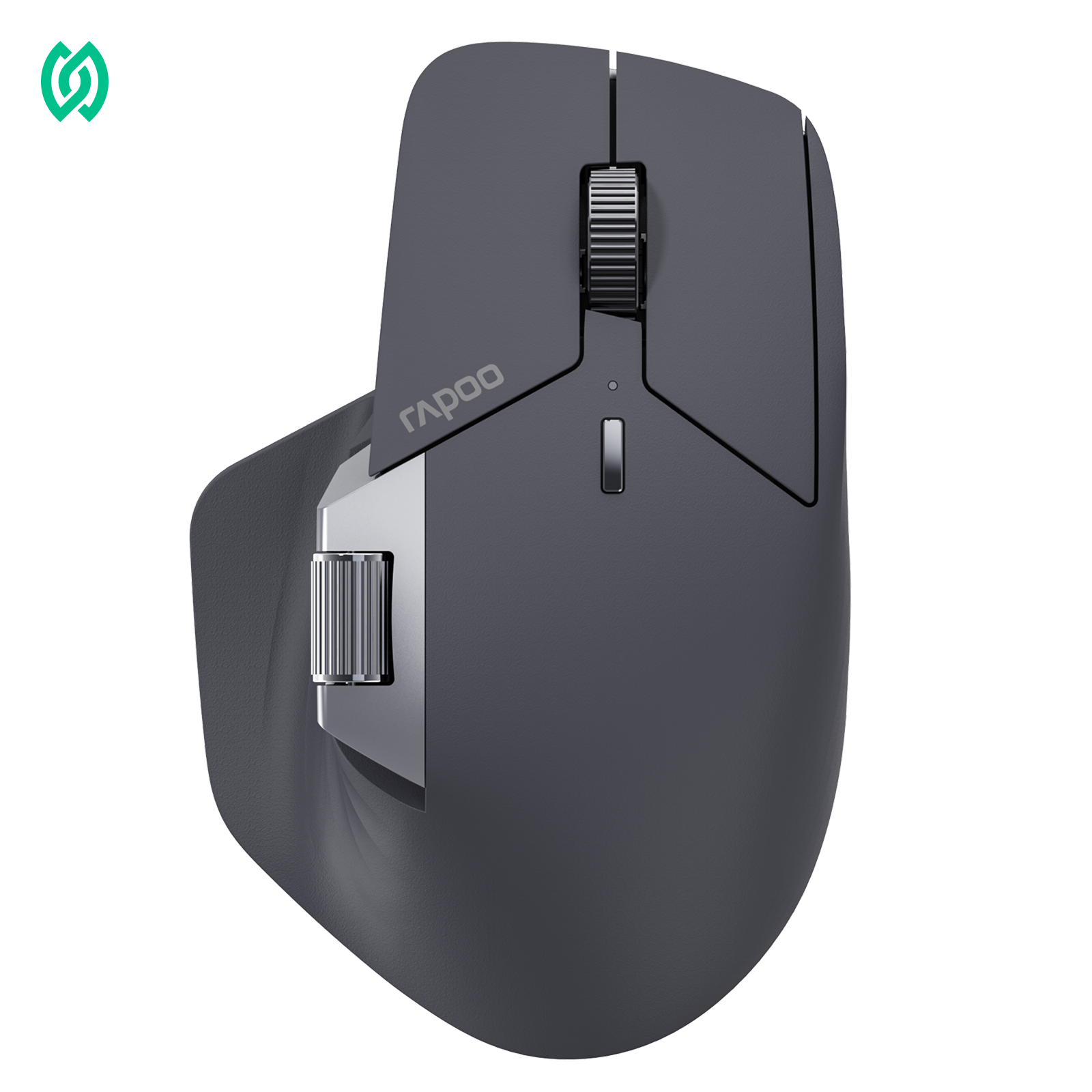
Many modern mice—especially gaming mice—come with dedicated DPI buttons, typically positioned near the scroll wheel for quick access. Pressing these buttons lets you cycle through preset DPI levels, such as 800, 1200, 1600, or 3200 DPI. For example, the RAPOO VT2 MAX features clearly separated DPI increase and decrease buttons on the top of the mouse, making it easy to adjust sensitivity on the fly without opening any software.

What you should know:
- Each press switches to the next DPI level
- Some mice use LED colors to indicate the active DPI
- DPI presets are usually defined by the manufacturer
- This method is fast and works without software
⚠️ Limitation:
You can’t always see the exact DPI number unless you check the manual or use software.
5.2 Change Mouse DPI Using Software (Most Control & Precision)
There are several ways to change mouse DPI, and each method offers different levels of control, precision, and convenience. The table below breaks down the most common options so you can quickly find the one that fits your setup.
| Method | How It Works | Best For | Pros | Limitations |
|---|---|---|---|---|
| DPI Button on Mouse | Press a physical button to cycle through preset DPI levels | Quick adjustments, casual users | Fast, no software needed | Exact DPI values often unknown |
| Manufacturer Software | Adjust DPI precisely using mouse software | Gamers, power users | Full control, custom profiles | Requires installation |
| Windows Settings | Change pointer speed and acceleration | Basic tuning | Works on any mouse | Does not change true DPI |
| DPI Shift / Sniper Button | Temporarily lowers DPI while holding a button | FPS gamers | High precision on demand | Gaming mice only |
| App-Specific Profiles | Automatically switch DPI per game/app | Advanced users | Seamless experience | Setup required |
6. How to Increase Mouse DPI (And When You Shouldn’t)
Many users search for “how to increase mouse DPI” because their cursor feels too slow—especially on large or high-resolution monitors. While increasing DPI is possible in many cases, it’s important to understand what can truly be increased, what is limited by hardware, and what is only software scaling. Not all mice support true DPI increases, and forcing higher sensitivity doesn’t always lead to better control.
6.1 Can You Really Increase Mouse DPI? (The Short Answer)
Yes—but only up to your mouse’s hardware limit.
True DPI is determined by the sensor inside your mouse. If your mouse supports adjustable DPI, you can increase it using buttons or software. If it doesn’t, Windows settings can only simulate higher sensitivity, not increase real DPI.
This distinction is critical, and it’s where many users get confused.
6.2 Different Ways to Increase Mouse DPI (What Actually Works)
| Method | Increases True DPI? | How It Works | Best For | Notes |
|---|---|---|---|---|
| DPI Button on Mouse | ✅ Yes | Cycles through higher preset DPI levels | Gaming mice users | Limited to preset values |
| Manufacturer Software | ✅ Yes | Sets higher DPI within sensor range | Gamers, advanced users | Most accurate method |
| Windows Pointer Speed | ❌ No | Scales cursor movement | Any mouse | Not true DPI |
| Mouse Acceleration | ❌ No | Dynamically boosts speed | Casual users | Reduces consistency |
| Third-Party Tools | ❌ No | Software scaling only | Not recommended | Can cause instability |
6.3 How to Increase DPI the Right Way (Step-by-Step Logic)
If your mouse supports adjustable DPI, follow this order:
- Check the maximum DPI supported by your mouse sensor
- Use mouse software to raise DPI gradually
- Test comfort and control at each step
- Avoid jumping straight to extreme DPI values
- Disable mouse acceleration for consistency
This approach prevents overshooting into unusable sensitivity.
6.4 Why Increasing DPI Isn’t Always the Best Solution
Raising DPI can help on 4K or ultrawide monitors, but it can also introduce problems:
- Cursor becomes jittery
- Small movements become harder to control
- Sensor noise becomes more noticeable
- Precision drops in gaming scenarios
That’s why many experienced users prefer moderate DPI + proper in-game sensitivity, instead of maxing out DPI.
6.5 Better Alternatives to “Just Increasing DPI”
If your mouse feels slow, try these before pushing DPI higher:
| Alternative | Why It Helps |
|---|---|
| Adjust in-game sensitivity | Preserves sensor accuracy |
| Increase polling rate | Improves responsiveness |
| Use a larger mousepad | Allows lower DPI with more control |
| Upgrade to a better sensor | Cleaner tracking at all DPI levels |
| Match DPI to screen resolution | Prevents over- or under-scaling |
6.6 Recommended DPI Ranges (Practical Guidance)
| Use Case | Recommended DPI |
|---|---|
| FPS gaming | 400–800 |
| MOBA / RTS | 800–1600 |
| Office / productivity | 1200–1600 |
| 1440p displays | 1200–2000 |
| 4K displays | 1600–3200 |
These ranges balance speed, control, and sensor stability.
Key Takeaway
Increasing mouse DPI is useful—but only when done within hardware limits and matched to your actual use case. Higher DPI is not automatically better, and control always matters more than raw speed.
7. Mouse DPI Test: How to Measure Your Mouse DPI
If you don’t know your mouse’s exact DPI—or want to verify whether it matches the manufacturer’s claims—a mouse DPI test is the most practical solution. DPI testing estimates how many pixels your cursor moves when your mouse travels a known physical distance. While it won’t be as precise as manufacturer software, it’s accurate enough for tuning sensitivity and comparing settings.
This is especially useful for office mice, older models, or any mouse without dedicated DPI software.
7.1 What Is a Mouse DPI Test, Exactly?
A mouse DPI test measures real-world movement vs on-screen movement. By moving your mouse a fixed distance (usually 1 inch or 5 cm), the tool calculates how far the cursor travels and estimates your DPI.
In short:
Physical distance + cursor distance = estimated DPI
This answers the common question:
“How do I know my mouse DPI if there’s no software?”
7.2 Common Ways to Test Mouse DPI (Comparison Table)
| Method | Accuracy | Ease of Use | Best For | Notes |
|---|---|---|---|---|
| Manufacturer Software | ⭐⭐⭐⭐⭐ | Very easy | Gaming mice | Shows true DPI |
| Online DPI Checker | ⭐⭐⭐⭐☆ | Easy | Any mouse | Requires manual measurement |
| Manual Pixel Count | ⭐⭐⭐ | Medium | Advanced users | Time-consuming |
| Guessing via Windows Speed | ⭐ | Easy | ❌ Not recommended | Not true DPI |
👉 For most users, an online mouse DPI test tool is the best balance of accuracy and simplicity.
7.3 How to Do a Mouse DPI Test (Step by Step)
Here’s the most reliable way to run a DPI test using an online tool:
Step-by-step process:
-
Disable mouse acceleration
- Turn off Enhance Pointer Precision in Windows
-
Set Windows pointer speed to the default (middle position)
-
Choose a known distance
- 1 inch or 5 cm works best
-
Place your mouse at the start point
-
Move the mouse slowly and steadily
-
Repeat the test 3–5 times
-
Average the results
Repeating the test reduces human error and improves accuracy.
7.4 Tips for Getting Accurate DPI Test Results
Even small setup issues can affect results. Follow these tips to avoid false readings:
- Use a flat, non-glossy mousepad
- Move the mouse slowly and smoothly
- Avoid wrist flicks
- Keep DPI settings fixed during testing
- Close background apps that may interfere
If results vary widely, your mouse sensor may be inconsistent—or acceleration may still be enabled.
7.5 Interpreting Your DPI Test Results
Once you get a number, here’s how to understand it:
| Tested DPI Range | What It Means |
|---|---|
| 400–800 | Low DPI, high precision |
| 800–1200 | Balanced, very common |
| 1200–1600 | Fast but controllable |
| 1600–3200+ | High sensitivity |
| Inconsistent results | Sensor or acceleration issue |
If your tested DPI doesn’t match the advertised value exactly, that’s normal. Minor variance is expected.
7.6 When You Should (and Shouldn’t) Rely on DPI Tests
DPI tests are great for:
- Finding approximate DPI on unknown mice
- Matching sensitivity across different mice
- Fine-tuning gaming or work setups
DPI tests are not ideal for:
- Verifying sensor quality
- Comparing two different sensor technologies
- Measuring accuracy or tracking performance
Remember: DPI ≠ sensor quality.
Key Takeaway
A mouse DPI test is the fastest way to understand how your mouse behaves in real-world use—but it’s a tool for estimation, not a replacement for proper hardware specs.
8. What DPI Should You Use?
There is no single “perfect” DPI that works for everyone. The best mouse DPI depends on how you use your computer, the type of display you have, and how much control or speed you prefer. A DPI setting that feels amazing for FPS gaming may feel painfully slow for office work—and vice versa.
Instead of chasing the highest number, the goal is to find a DPI that feels natural, consistent, and comfortable for your specific setup.
8.1 Recommended DPI by Use Case
The table below shows commonly recommended DPI ranges based on real-world usage. These ranges are widely used by gamers, professionals, and everyday users in the U.S.
| Use Case | Recommended DPI | Why It Works |
|---|---|---|
| FPS Games | 400–800 | Maximum precision and stable aiming |
| MOBA / RTS Games | 800–1600 | Faster cursor movement without losing control |
| Office / Productivity | 1200–1600 | Comfortable speed for daily tasks |
| Graphic Design / Editing | 800–1200 | Better micro-adjustments |
| 1440p Displays | 1200–2000 | Balanced movement on higher resolution |
| 4K / Ultrawide Displays | 1600–3200 | Reduces excessive hand movement |
👉 These values are starting points—not strict rules.
8.2 DPI for Gaming vs Work: What’s the Difference?
🎮 Gaming DPI
In gaming, consistency matters more than speed. Most competitive FPS players intentionally use lower DPI combined with lower in-game sensitivity. This allows for precise muscle memory and predictable aiming.
- Lower DPI = better control
- Less cursor jitter
- More stable tracking during fast movements
🖥️ Work & Productivity DPI
For work, especially on large or high-resolution screens, slightly higher DPI makes navigation easier and reduces wrist movement.
- Higher DPI = less desk space needed
- Faster window switching
- Better multitasking efficiency
8.3 How Screen Resolution Affects DPI
Your monitor plays a bigger role in DPI choice than most people realize.
| Screen Resolution | Suggested DPI Range |
|---|---|
| 1080p | 800–1200 |
| 1440p | 1200–2000 |
| 4K / Ultrawide | 1600–3200 |
Higher resolutions mean more pixels to cross—higher DPI compensates for that.
Key Takeaway
The best DPI is the one you don’t have to think about. If your mouse feels natural, predictable, and comfortable, you’ve found the right setting.
Conclusion
Mouse DPI is not about using the highest number possible—it’s about finding the right balance between speed, control, and comfort. Once you understand what mouse DPI actually means, how to check it, adjust it, and test it, choosing the right setting becomes much easier.
Whether you’re gaming, working, or using a high-resolution display, the best dpi mouse setup is the one that feels consistent and natural in daily use. Focus on control, match your DPI to your screen and tasks, and avoid common myths—because in real-world performance, precision always matters more than numbers.
Mouse DPI – FAQ
1. What is a good DPI for a mouse?
A good mouse DPI depends on how you use your computer. For most users, 800–1600 DPI offers a comfortable balance between speed and control. Gamers often prefer lower DPI for accuracy, while office users may choose slightly higher DPI for faster navigation.
2. Is 3200 DPI good for gaming?
Not necessarily. While 3200 DPI can work for some users, most competitive gamers use 400–800 DPI for better control and consistency. Higher DPI doesn’t improve accuracy and can actually make aiming harder.
3. Which is better: 1000 DPI or 1600 DPI?
Neither is universally better—it depends on your setup. 1000 DPI offers more control, while 1600 DPI feels faster and works well on higher-resolution displays. Both are commonly used and considered practical ranges.
4. Does mouse DPI affect FPS or performance?
No. Mouse DPI does not affect FPS, system performance, or hardware load. DPI only controls cursor sensitivity and has no impact on how games or applications run.
5. How do I check my mouse DPI?
You can check mouse DPI by:
-
Viewing the manufacturer’s specifications
-
Using mouse software (if available)
-
Running an online mouse DPI test
Windows settings alone do not show true DPI values.
6. How can I change the DPI on my mouse?
You can change DPI by using:
- A physical DPI button on the mouse
- Manufacturer software for precise control
- Windows pointer speed (software scaling only)
For true DPI changes, mouse software or hardware buttons are required.
7. Can I increase mouse DPI on any mouse?
Only mice with adjustable sensors support true DPI increases. For other mice, Windows settings can increase cursor speed, but this does not change the actual DPI of the mouse.
8. What DPI do professional gamers use?
Most professional FPS players use 400–800 DPI combined with low in-game sensitivity. This setup provides better consistency, muscle memory, and precise aiming.
9. Is higher mouse DPI more accurate?
No. Higher DPI does not mean better accuracy. Accuracy depends on sensor quality and tracking performance, not DPI alone. Extremely high DPI can even reduce control.
10. What DPI should I use for a 4K monitor?
For 4K or ultrawide displays, 1600–3200 DPI is commonly recommended to reduce excessive hand movement while maintaining smooth cursor control.
11. What’s the difference between DPI and CPI on a mouse?
Technically, CPI (Counts Per Inch) measures sensor data, while DPI is a display-related term. In practice, DPI and CPI are used interchangeably in consumer mouse products.
12. Do I need to change DPI for different games or tasks?
Yes. Many users benefit from different DPI profiles—for example, lower DPI for FPS games and higher DPI for work or browsing. Gaming mice often support app-specific DPI profiles.