





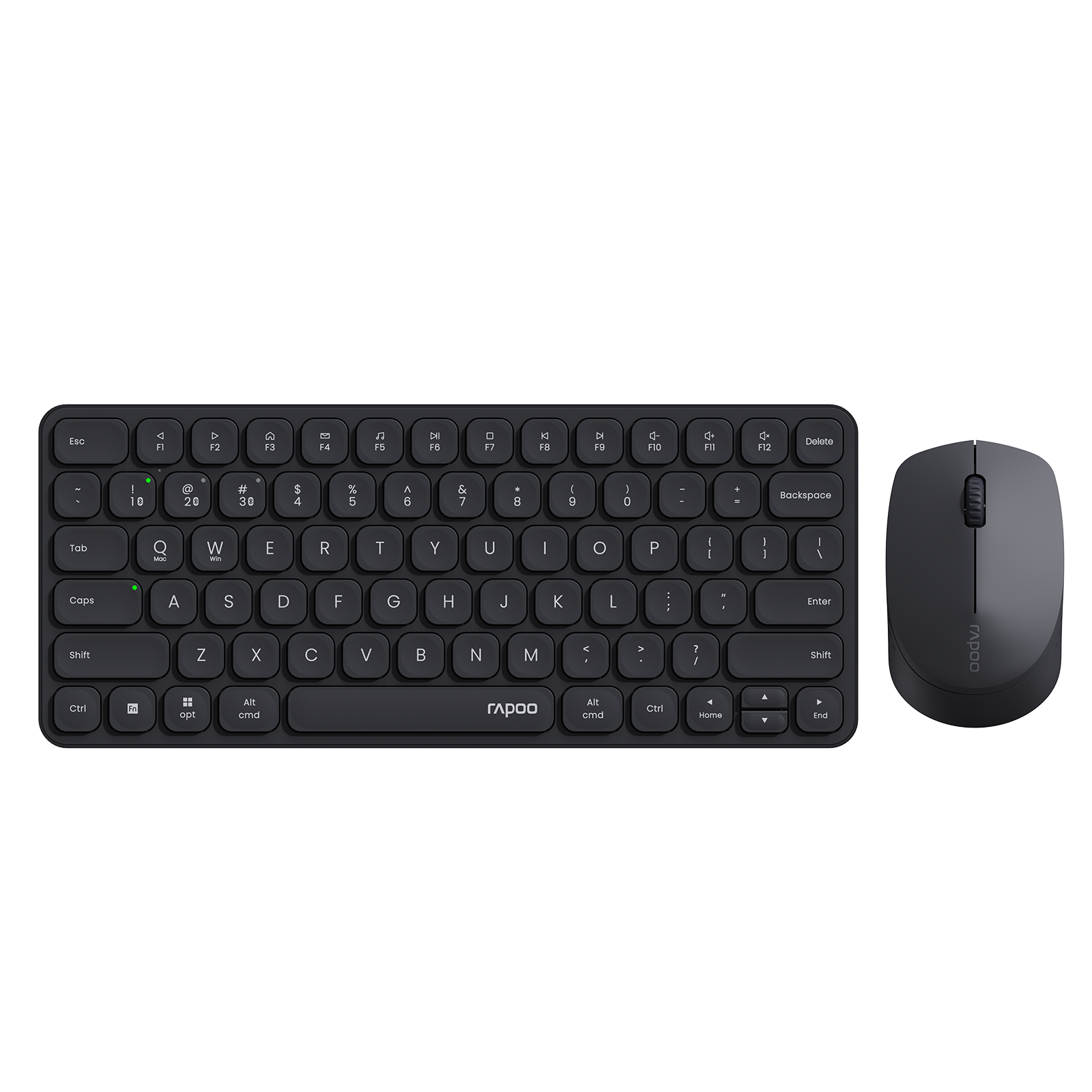

If you're using a RAPOO mouse or keyboard on macOS and the device cannot be detected or paired with RAPOO A HUB, the issue is often related to macOS system permissions rather than the hardware itself.
macOS includes strict privacy and security controls that limit how applications access input devices. If RAPOO A HUB does not have the correct permissions, it may fail to detect your mouse or keyboard, preventing you from configuring buttons, DPI settings, or other features.
Fortunately, this issue can usually be resolved in just a few steps by adjusting the correct macOS permissions.
This guide will walk you through the complete process to restore normal pairing between your RAPOO device and RAPOO A HUB.
Download the Latest RAPOO A HUB for macOS
Before troubleshooting the connection, make sure you are using the latest version of RAPOO A HUB for macOS.
Software updates often include compatibility fixes for new macOS versions, improved device detection, and stability improvements.
You can download the latest version here:
Download RAPOO A HUB for macOS
After downloading:
- Install the application.
- Launch RAPOO A HUB.
- Connect your RAPOO mouse or keyboard.
If the device still cannot be detected, follow the permission steps below.
Step-by-Step Guide to Fix RAPOO A HUB Pairing Issues on macOS
Follow the steps below to correctly configure the required macOS permissions.
Step 1: Re-add RAPOO A HUB in Input Monitoring
- Open System Settings.
- Navigate to Privacy & Security.
- Select Input Monitoring.
- Locate RAPOO A HUB.


If RAPOO A HUB already appears in the list:
- Remove it first.
- Then add it again.
This refreshes the permission and ensures macOS allows the software to read input devices.
Step 2: Re-add RAPOO A HUB in Accessibility
Next, configure Accessibility permissions.
- Open Privacy & Security.
- Go to Accessibility.
- Remove RAPOO A HUB if it already exists.
- Add RAPOO A HUB again.
Accessibility permission allows RAPOO A HUB to interact with your input devices and apply configuration settings.


Step 3: Restart RAPOO A HUB
After the permissions are added:
- Close RAPOO A HUB completely.
- Launch the software again.
Restarting the application ensures the new permissions are applied correctly.
When configuring your RAPOO mouse or keyboard, make sure the device is active and not in sleep mode.
Before pairing:
- Move the mouse or press a key to wake the device.
- Ensure the device is powered on.
- Confirm the correct connection mode (2.4GHz receiver or Bluetooth).
If the device is asleep, RAPOO A HUB may not detect it during configuration.
Why RAPOO Devices Sometimes Fail to Pair with A HUB on macOS
Unlike Windows, macOS requires applications to obtain explicit permission before they can monitor input devices such as keyboards and mice.
RAPOO A HUB requires access to the following macOS permissions:
- Input Monitoring
- Accessibility
If either permission is missing, A HUB may not be able to properly detect or communicate with the connected RAPOO device.
Re-adding these permissions usually resolves the issue.




1 Comment
Solved my RAPOO mouse problem